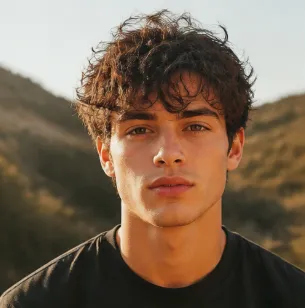
GPT Image 2.6 AI Image Generator for Your Visual Brief
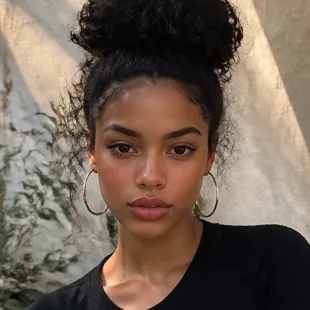
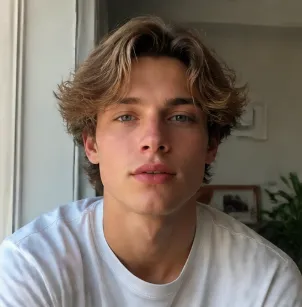
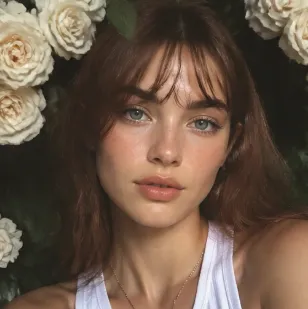
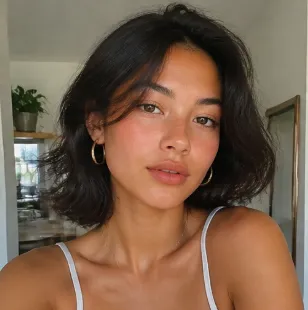
Tell GPT Image 2.6 what the image needs to communicate. Build a scene from words, develop an existing reference, or request an animated GIF or SVG graphic for a project that needs more than a photograph.
01
Build More from One Brief with GPT Image 2.6
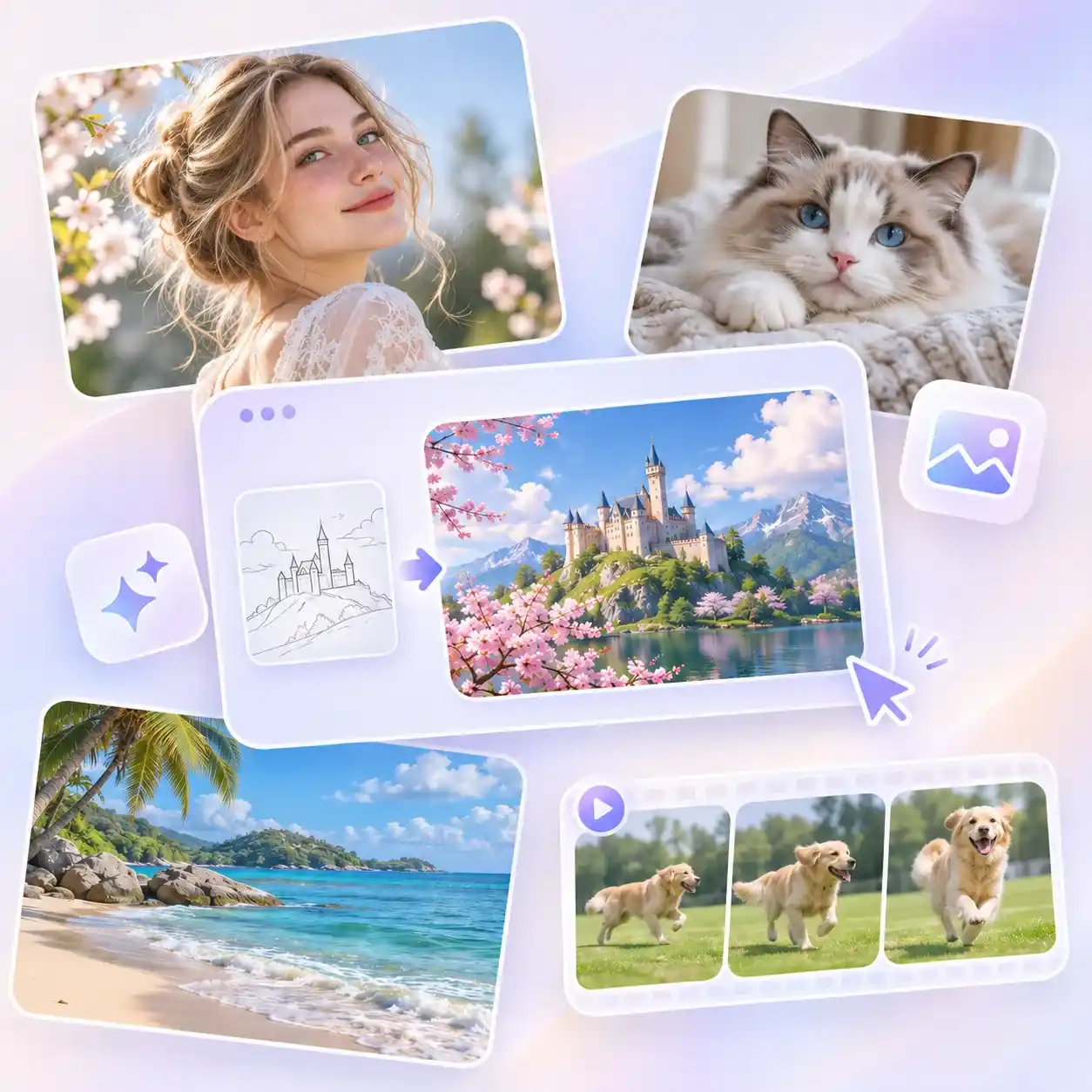
A strong visual starts with an assignment: what should people notice, understand, or feel? GPT Image 2.6 translates that brief into generated images and edits, with support for animated GIFs and static SVG graphics. The model family generates images 50% faster than the previous version; Flare can produce an image in about 6 seconds at low quality. Timing varies with the request and settings. Describe the intended destination alongside the subject, so a visual for a learning activity gets a different treatment from an illustration for a magazine. For a broader starting point, explore EzImage's AI image generator.
Turn a written assignment into a visual you can assess.
Supply references when words leave important details unclear.
Request a still image, a short GIF, or a vector graphic.
02
Choose GPT Image 2.6 Flare or Sunburst for the Task
Not every creative project starts with a finished idea. GPT Image 2.6 Flare is a good fit when you want to explore different styles, test visual directions, or make quick adjustments along the way. If you already have an image you want to develop, the AI image to image tool can help you explore new looks while keeping your original visual as a starting point. For projects that need more attention to composition, multiple subjects, and fine details, GPT Image 2.6 Sunburst offers a better fit. Both models support text and image inputs, so you can choose the approach that matches your creative process, whether you're still experimenting or working toward a polished final image.
Use Flare while the visual treatment is still open.
Bring a developed composition to Sunburst.
Keep the important instructions explicit in either model.
03
Request GIF and SVG Output with GPT Image 2.6
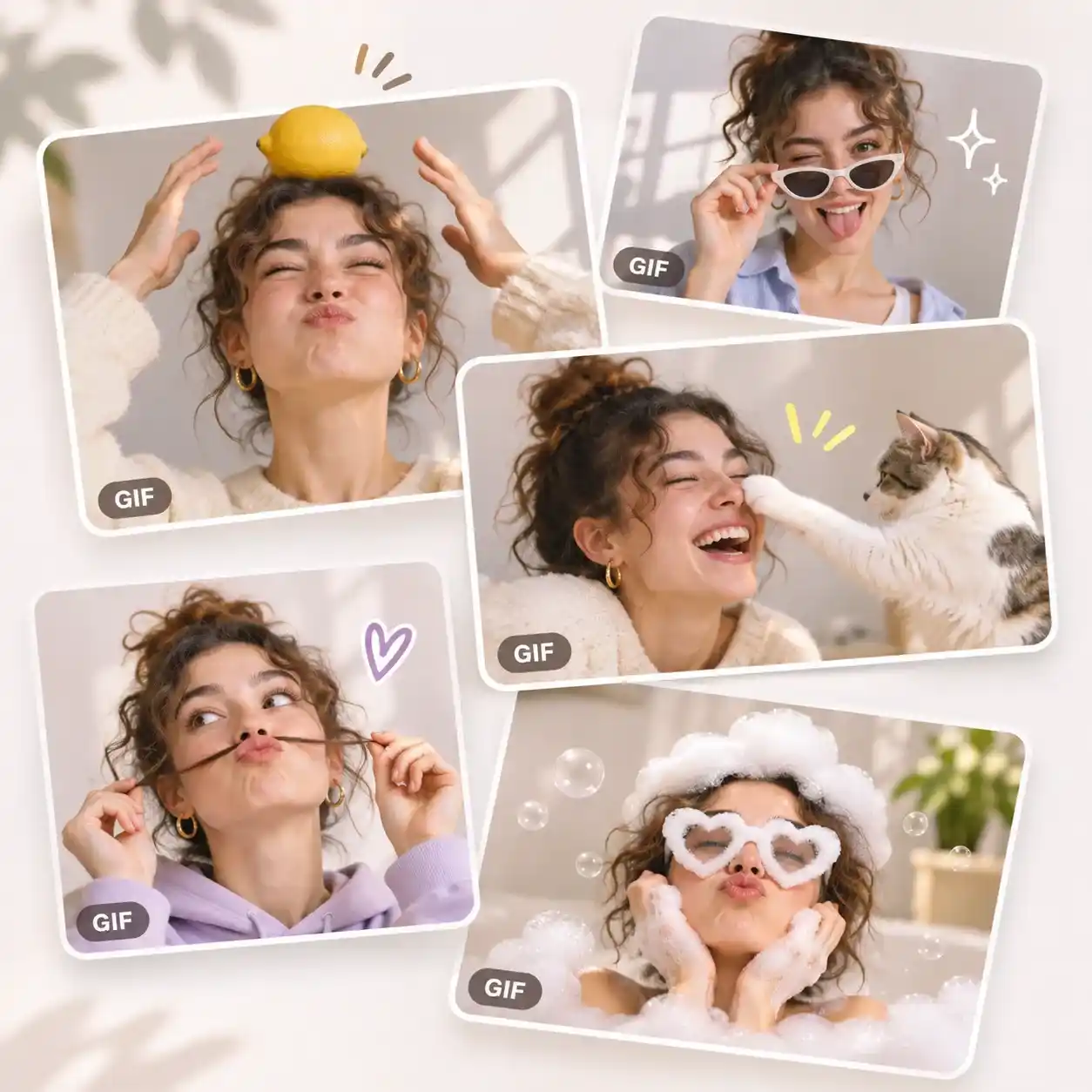
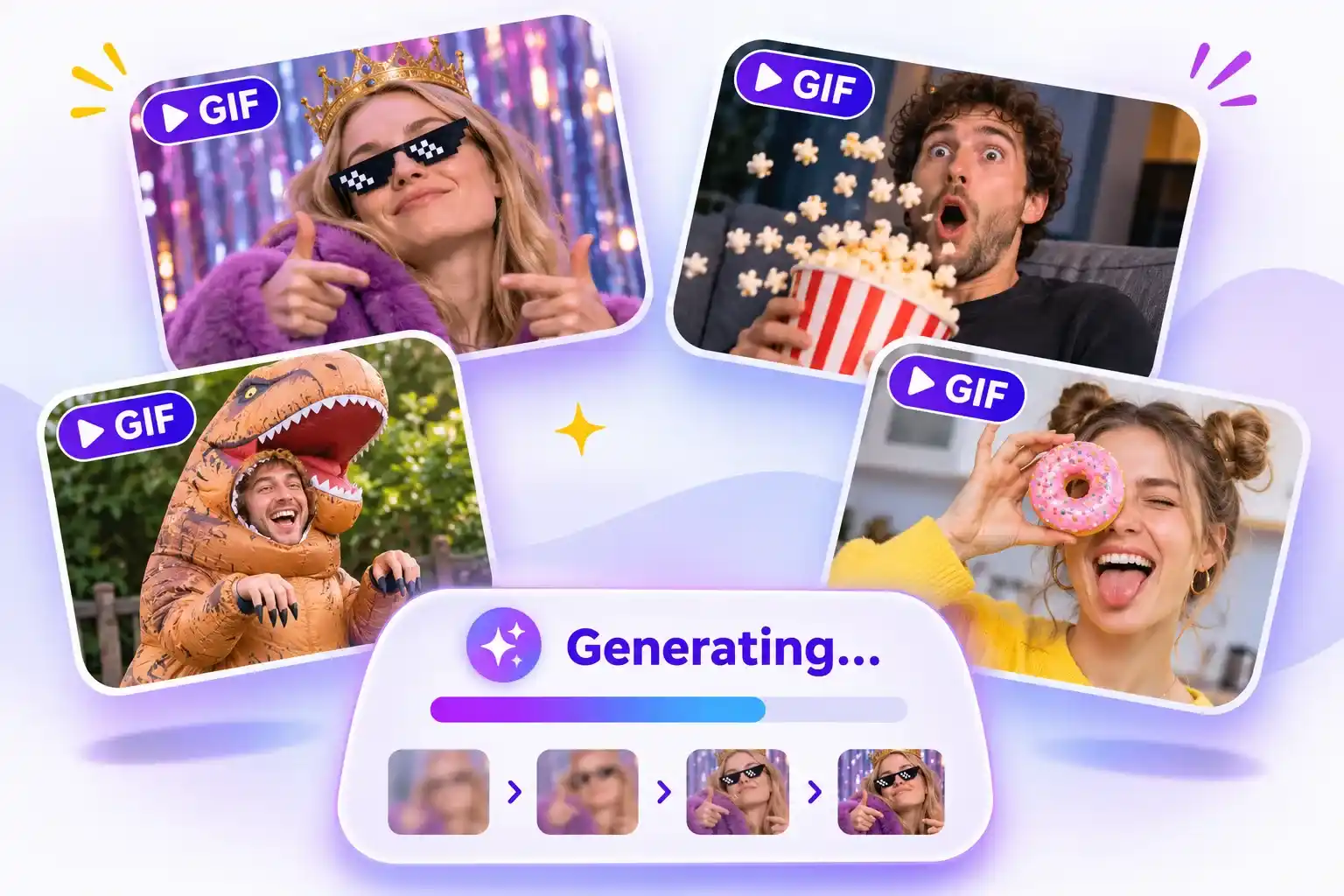
Some ideas work best as animations, while others need graphics that stay sharp at different sizes. GPT Image 2.6 can generate animated GIFs from text prompts or still images, without requiring you to assemble individual frames. Describe a simple action, such as a progress indicator filling up and restarting, to create a smooth loop. If your visual needs a little more polishing before use, our AI photo editor can help you refine the final image. For symbols, decorative elements, and illustrations that need to scale cleanly, you can also generate static SVG graphics. Their vector paths can be further adjusted in compatible design software. Choose the format that best suits your project and check the available output options in EzImage before generating.
Describe the movement and repeat behavior for a GIF.
Use SVG for graphics that need scalable paths and shapes.
Evaluate animation playback and vector structure before use.
More Control over What GPT Image 2.6 Creates
Your brief may depend on a particular word, an object's position, or a detail in a source image. These capabilities help you communicate those requirements.
Make Relationships in a Scene Easier to Explain
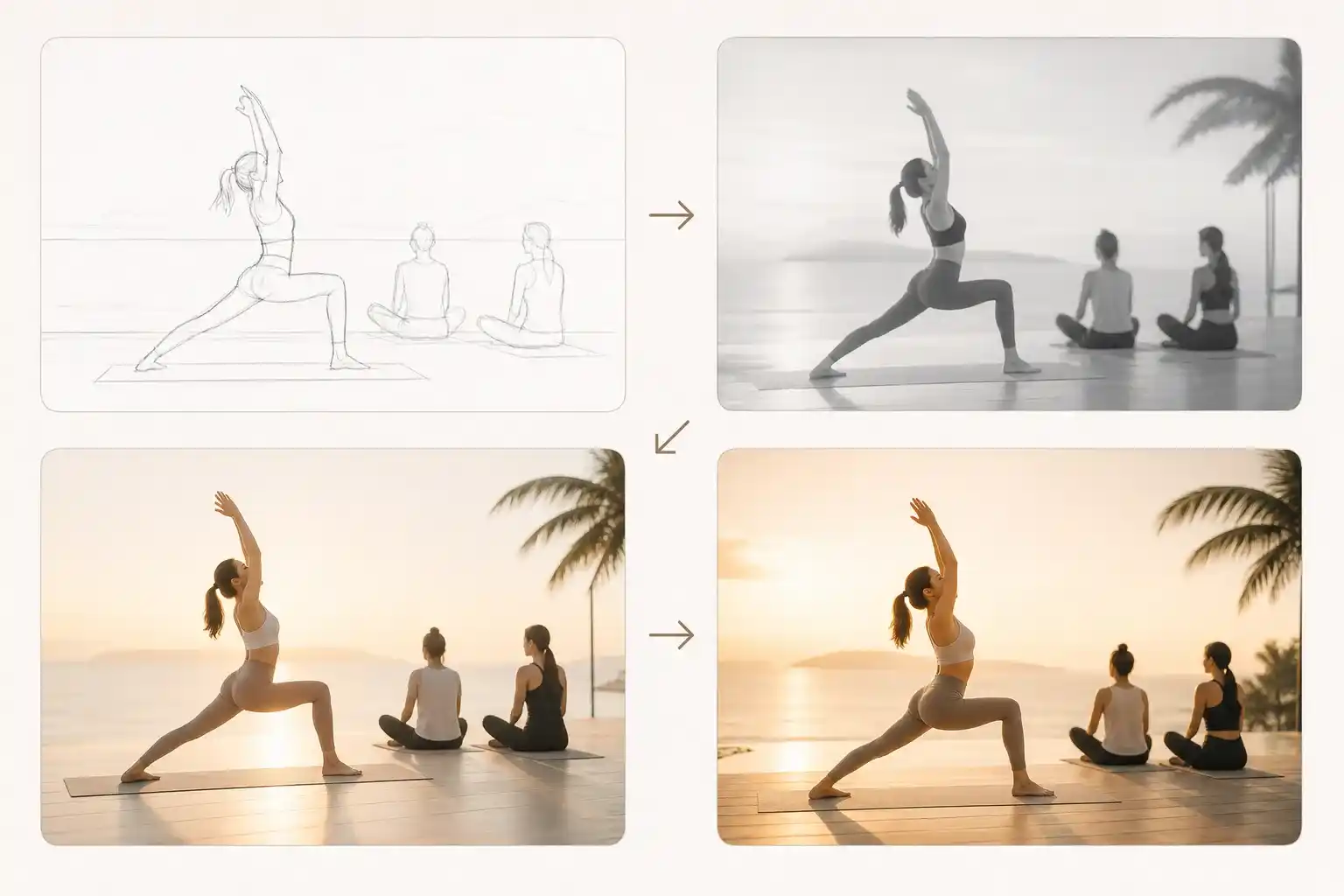
GPT Image 2.6 supports composition planning through its complexity setting. A brief with a foreground demonstration and background observers can specify how those elements relate, rather than leaving their arrangement entirely open.
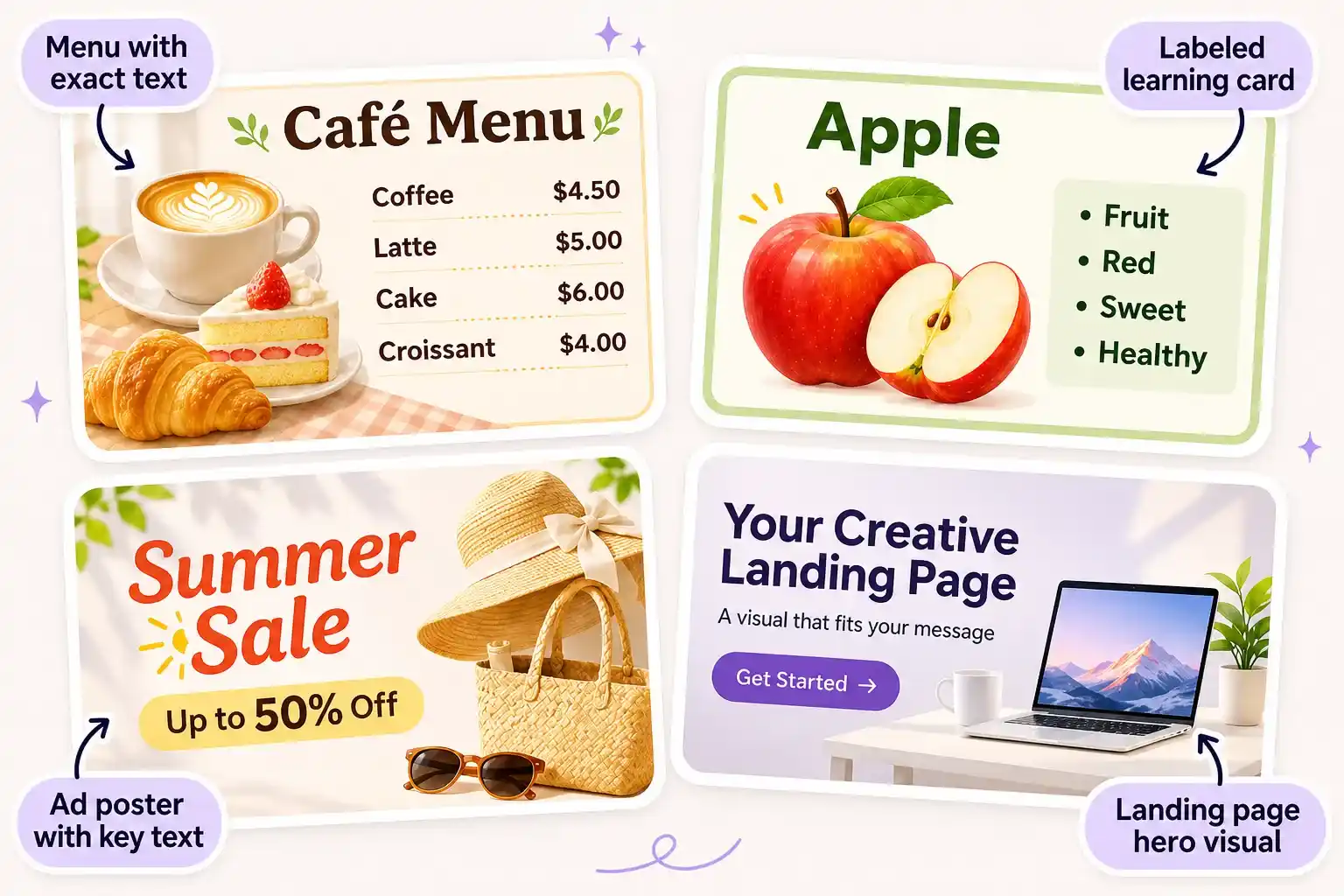
Include the Wording in the Visual Brief
For an illustrated menu or labeled learning card, provide the exact text and its intended placement. The model can incorporate words into the design; review spelling and legibility at the size people will actually see.
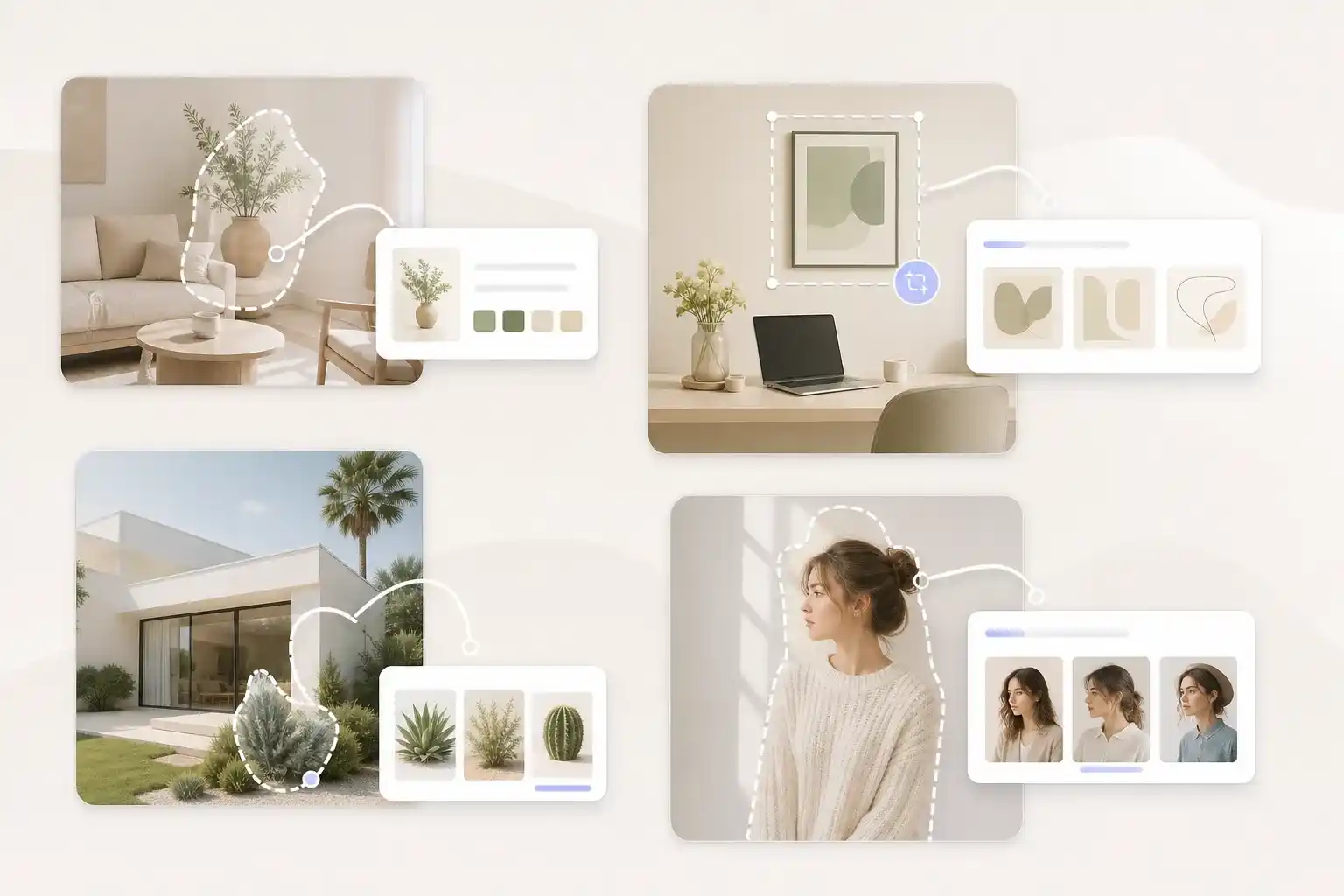
Show Where an Edit Belongs
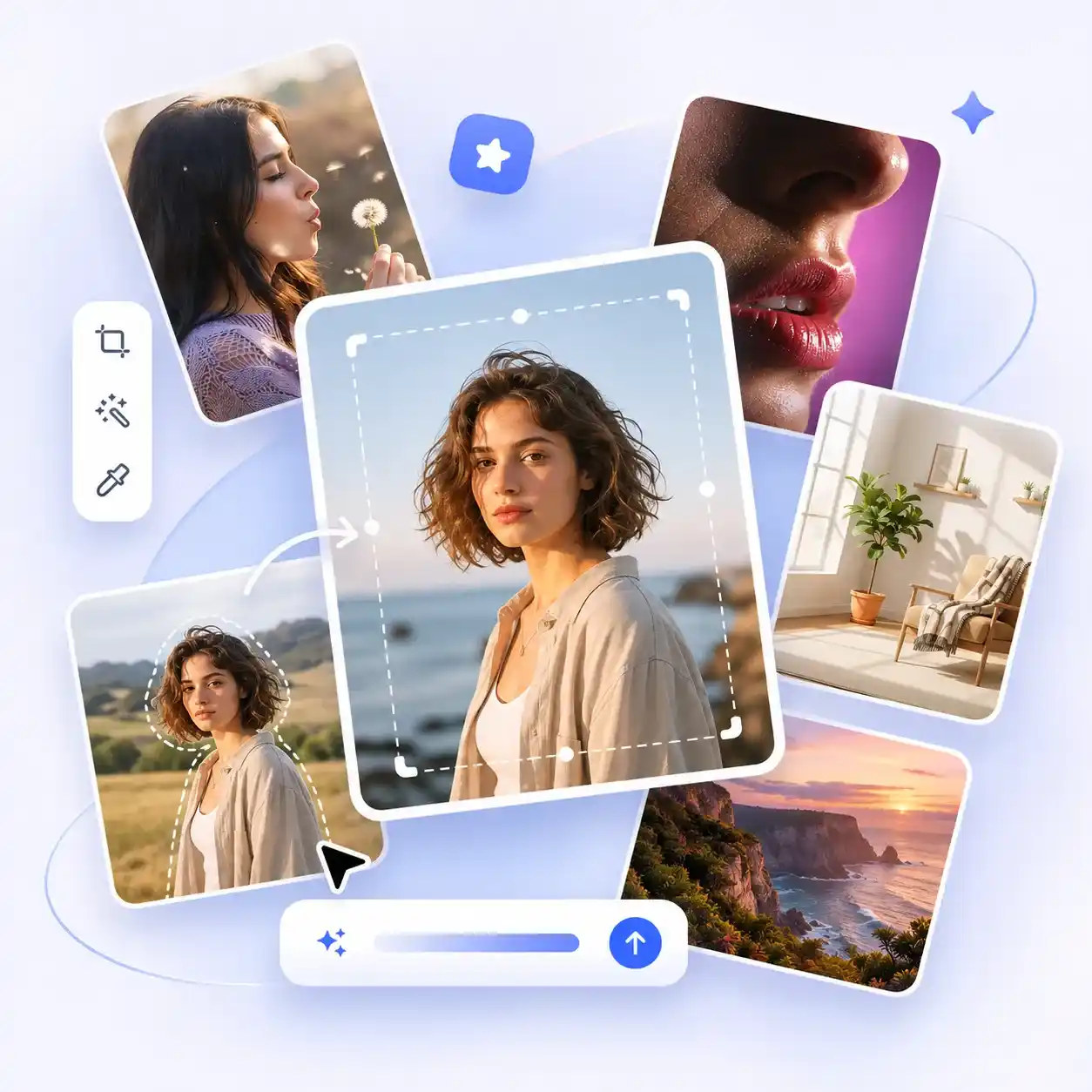
A written description of an area can be ambiguous. Markup-guided editing lets annotations indicate the region to change when supported by the tool, helping explain a local revision without relying on location words alone.
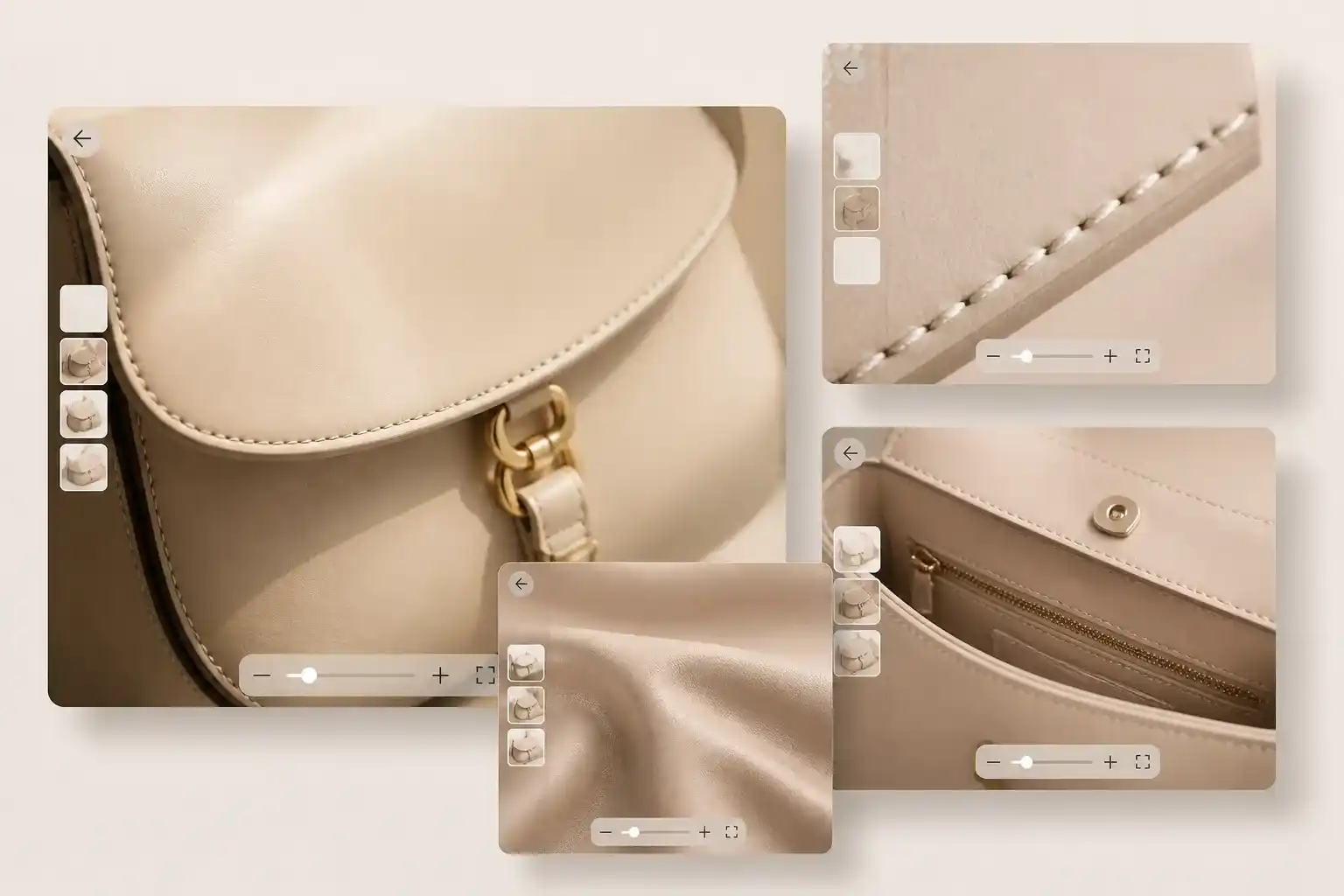
Give Small Reference Details More Context
High fidelity image input helps GPT Image 2.6 read source details during editing. A close view of a clasp, stitch, or surface pattern can provide more useful guidance than a distant photograph of the whole object.
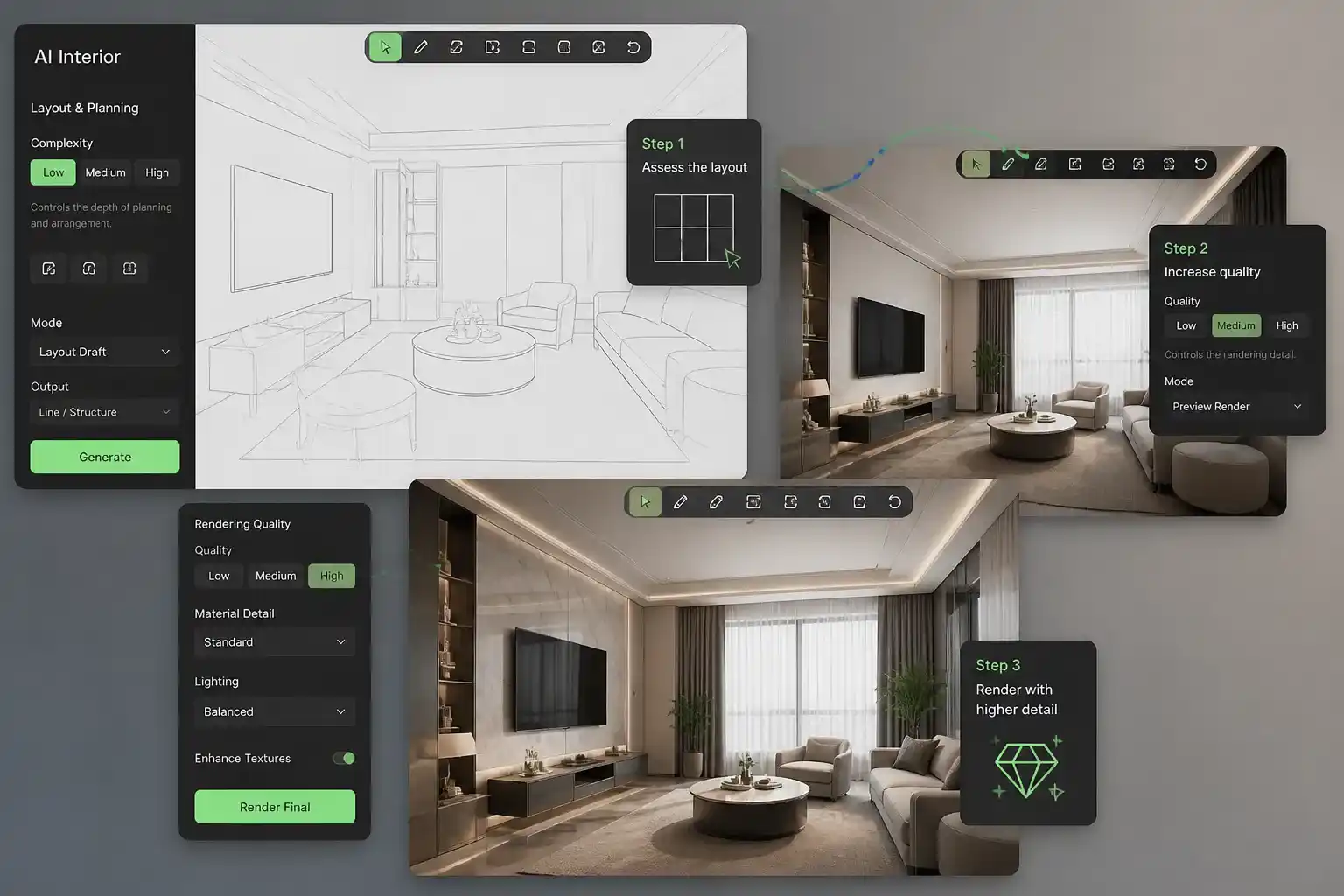
Separate Layout Decisions from Surface Detail
Complexity controls planning, while quality controls rendering detail. Where those settings are available, you can assess the arrangement before requesting a more detailed finish instead of treating every draft as a final asset.
Get the Animation as an Output
A sequence of separate pictures still needs assembly. Direct GIF output supplies an animated file, so you can concentrate on whether the action communicates clearly and whether the loop plays as intended.
Where GPT Image 2.6 Fits into Your Work
Turn your ideas into polished visual assets with GPT Image 2.6, from educational materials and digital designs to creative content.
Create Visual Learning Materials
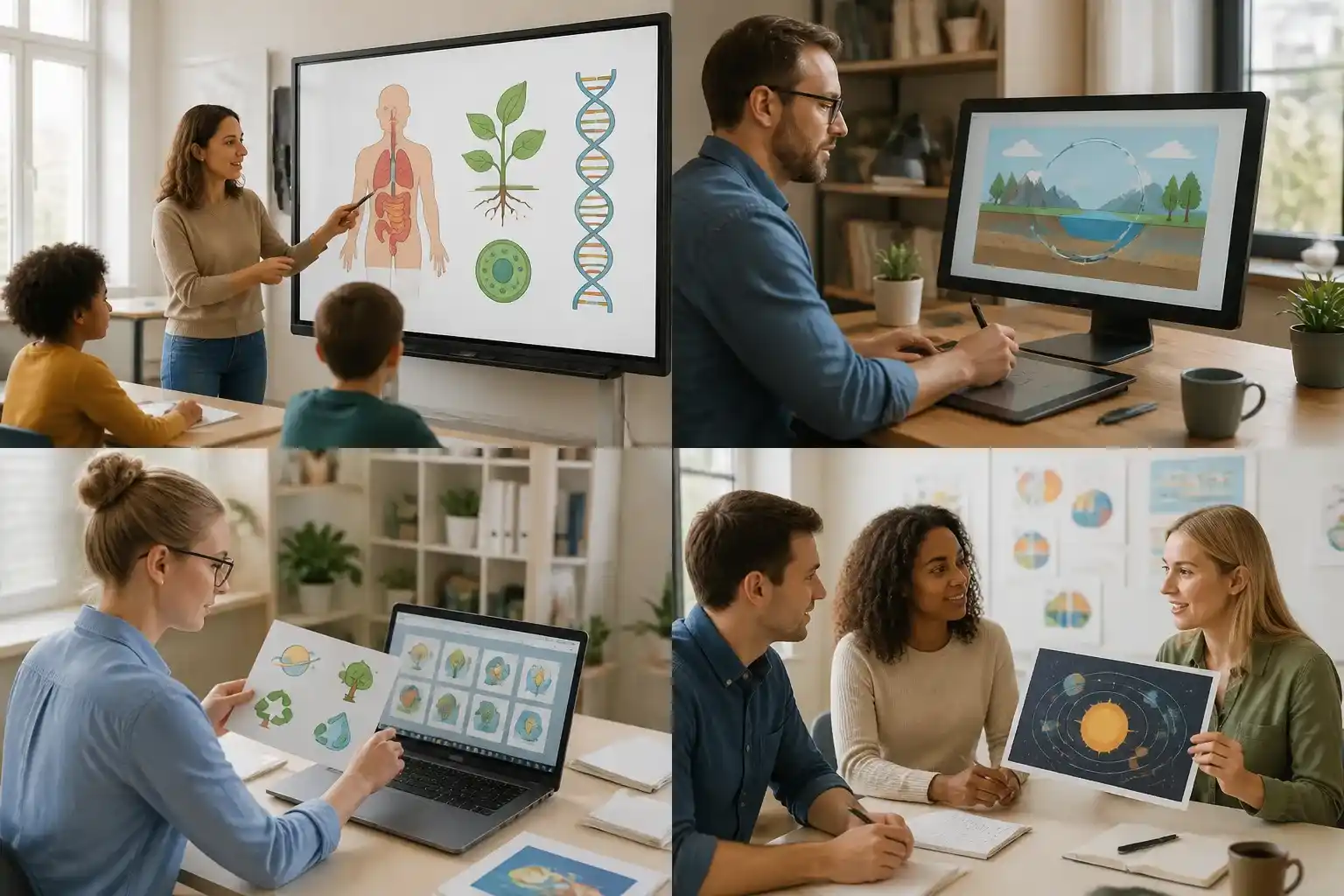
Make educational content more engaging with custom illustrations, diagrams, and visual explanations. GPT Image 2.6 helps turn complex ideas into accessible visuals, giving educators more flexibility when preparing presentations, learning resources, and digital teaching materials.
Create illustrations that support different learning topics.
Turn abstract concepts into clear visual explanations.
Develop consistent graphics for presentations and learning materials.
Design Visual Assets for Digital Products
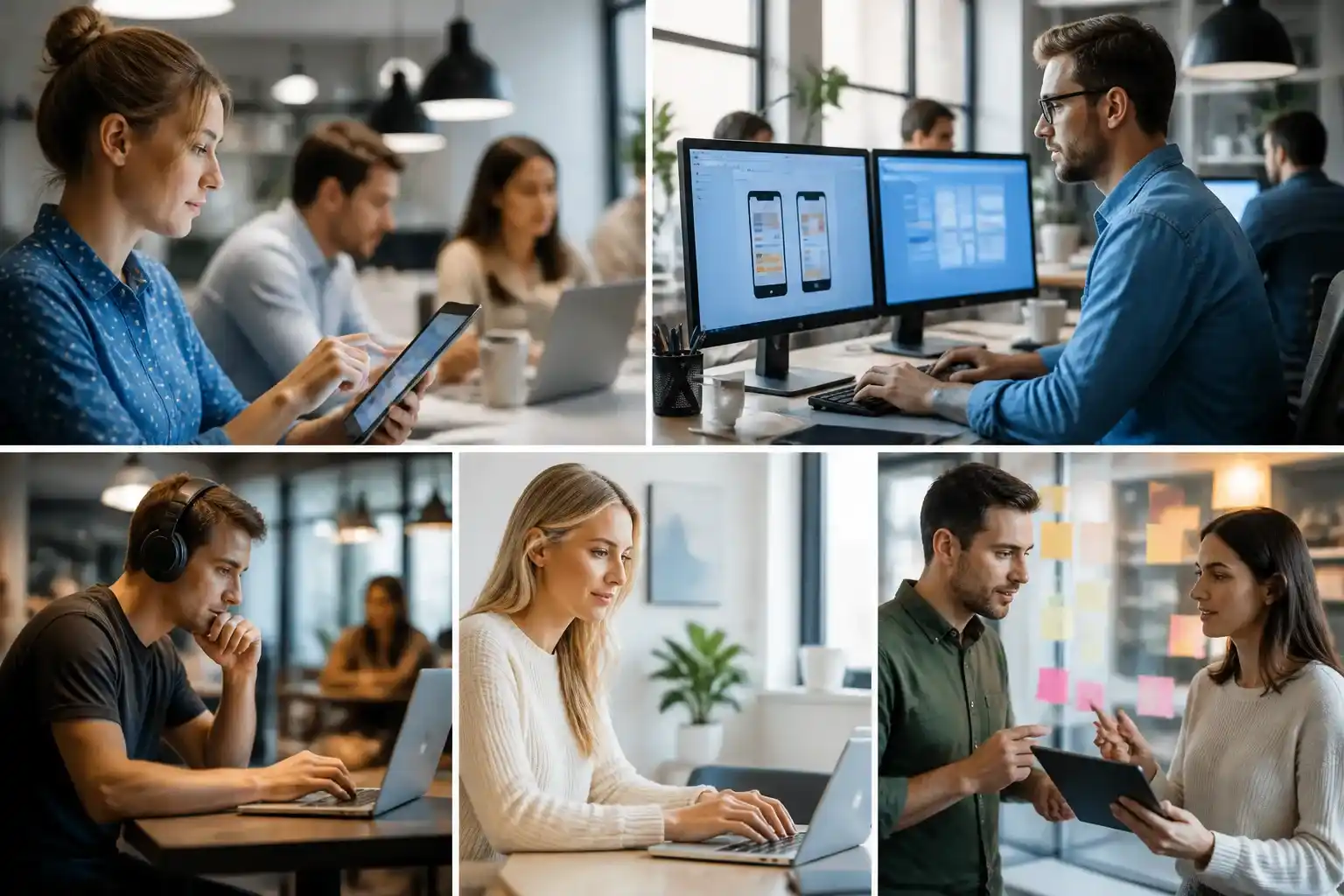
Create visual assets that make digital products more engaging and intuitive. From interface illustrations and feature graphics to promotional visuals and animated GIFs, GPT Image 2.6 helps product teams explore creative directions and develop assets for different stages of the user experience.
Generate custom illustrations and graphics for app interfaces.
Create visual content for product features and marketing campaigns.
Produce animated GIFs to support interactive digital experiences.
Bring Ideas to Life Through Visual Design
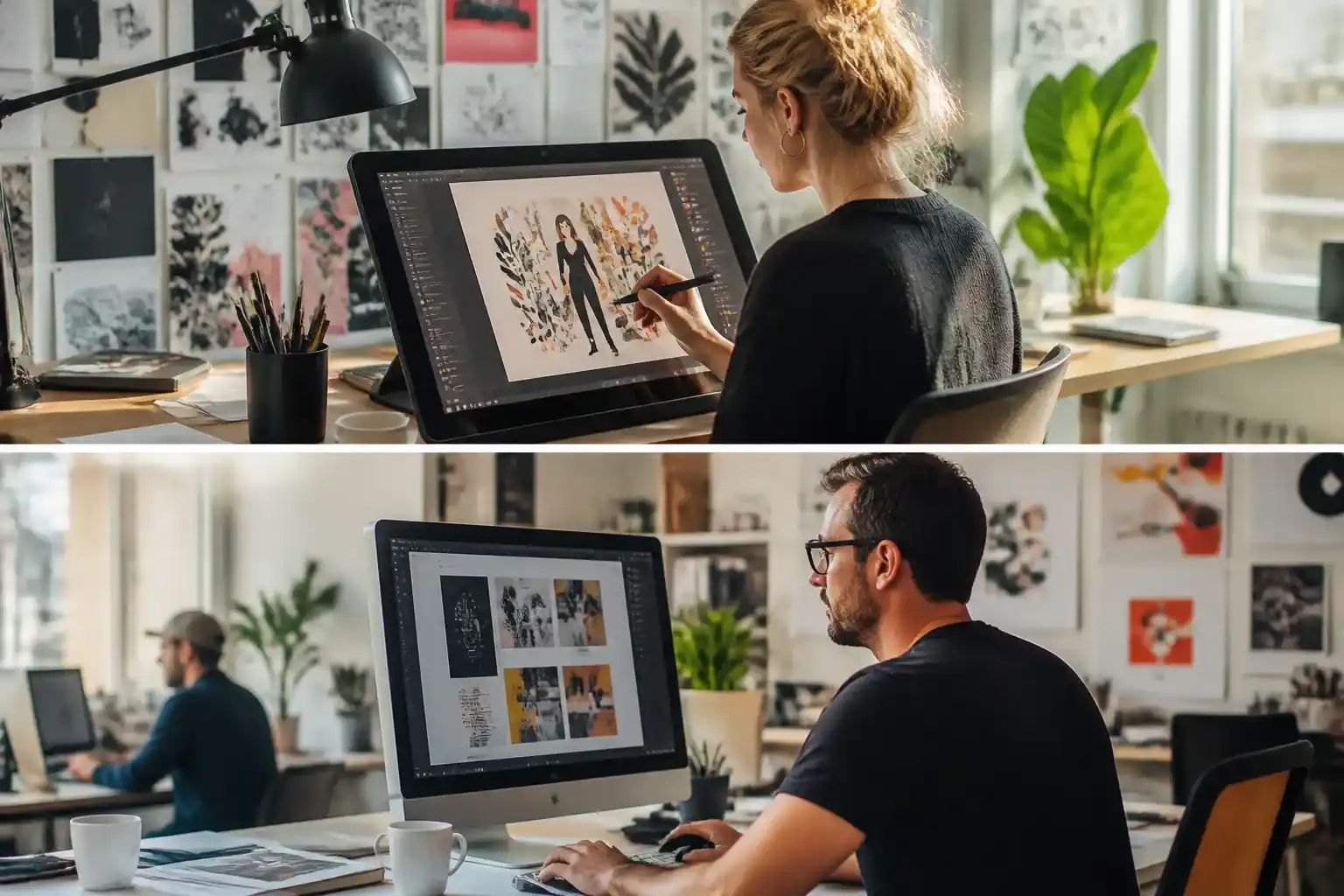
Develop distinctive visuals for publications, articles, presentations, and branded content. GPT Image 2.6 supports a range of creative styles and compositions, helping designers produce illustrations, decorative elements, and scalable SVG graphics that complement their layouts and visual identities.
Create original illustrations for editorial and digital content.
Explore different visual styles to match a publication's identity.
Generate SVG graphics for flexible design and further editing.
Turn Creative Ideas into Visual Content
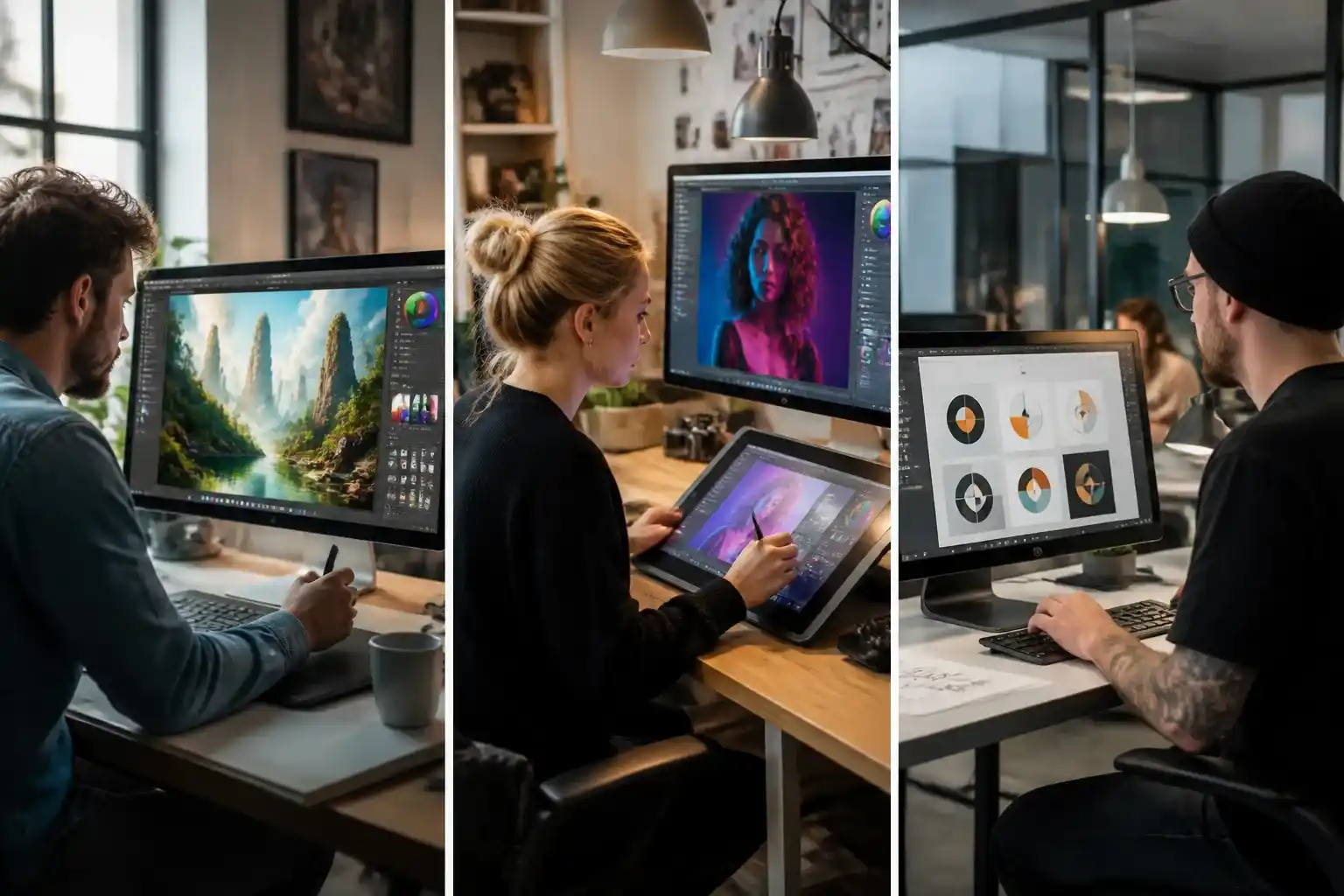
Bring personal projects and creative concepts to life with AI-generated visuals. Whether you're developing social media content, exploring artistic styles, building a portfolio, or creating assets for a campaign, GPT Image 2.6 helps you move from an initial idea to a finished visual.
Explore different artistic styles and visual directions.
Transform creative concepts into polished images and graphics.
Generate images, GIFs, and SVG assets for different platforms and projects.
How to Create with GPT Image 2.6 on EzImage
Prepare a clear instruction, generate the requested visual, and save the result after reviewing it in context.
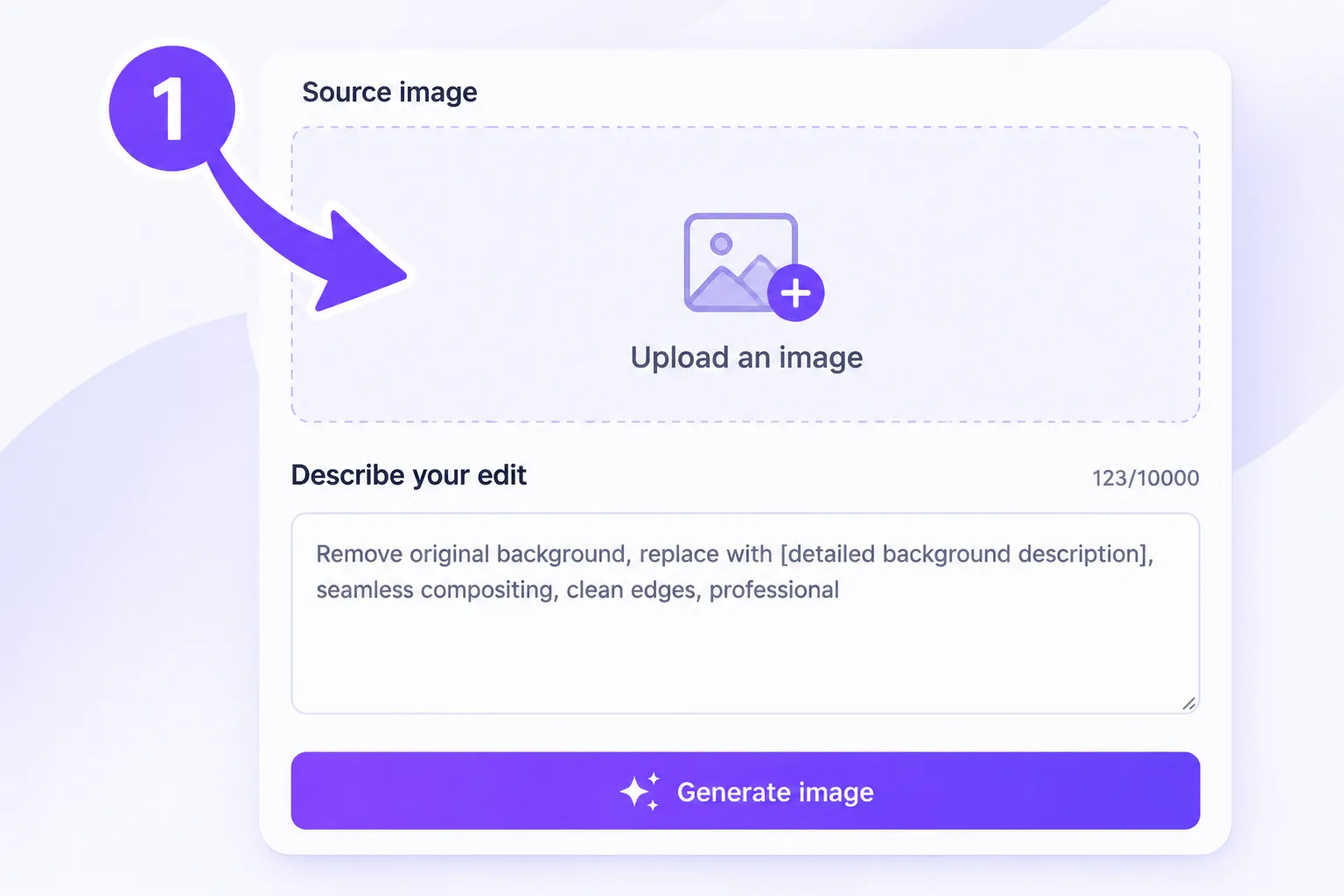
1
Set Out the Assignment
Open the generator and check the available model options for GPT Image 2.6. Describe what you need, where it will be used, and the details that matter. Attach a reference if the selected workflow accepts one.
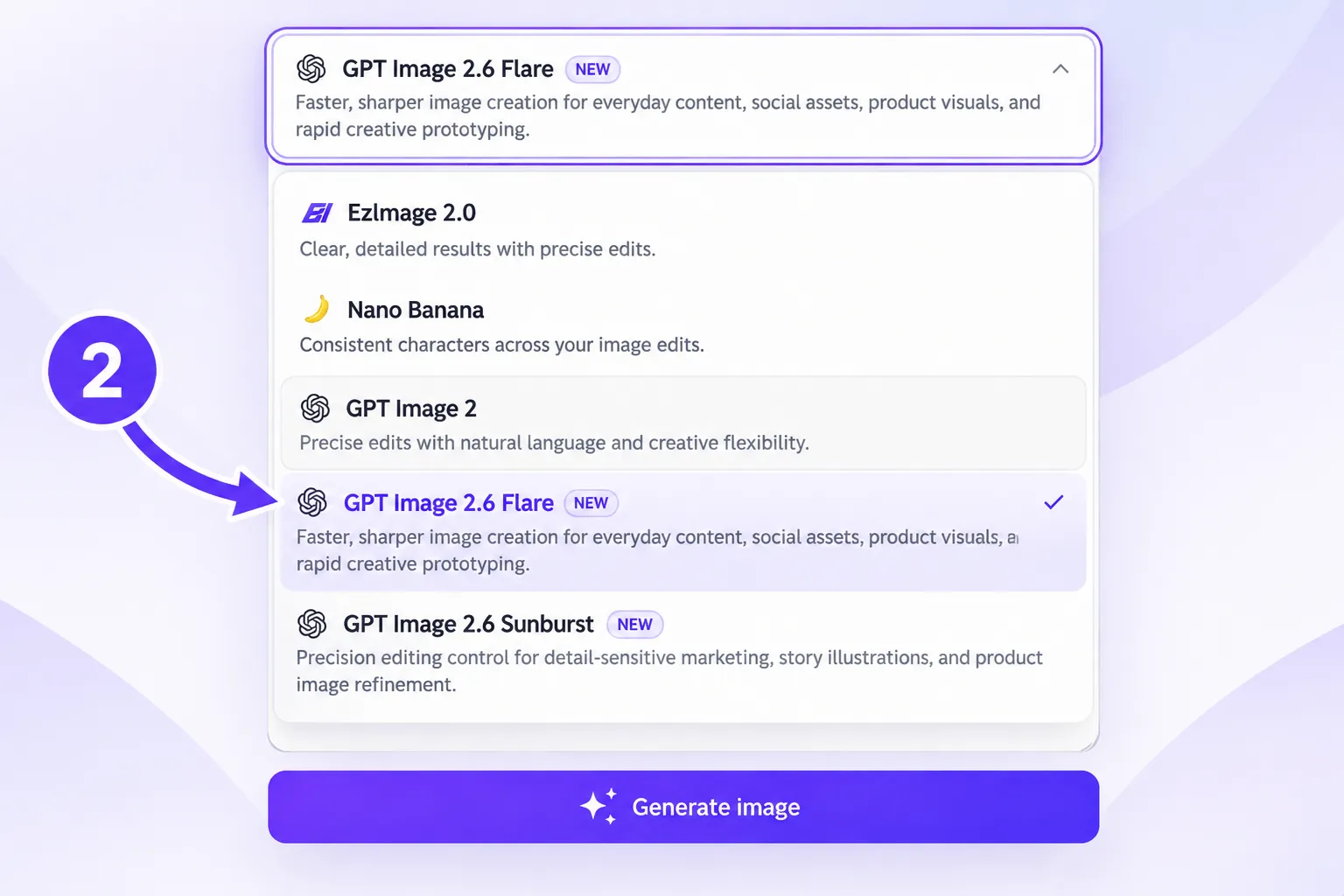
2
Generate in the Available Format
Choose Flare or Sunburst, then select a supported output. For motion, describe the action and loop; for a vector graphic, describe the shapes and style. Check any displayed cost or usage limit, and start generation.
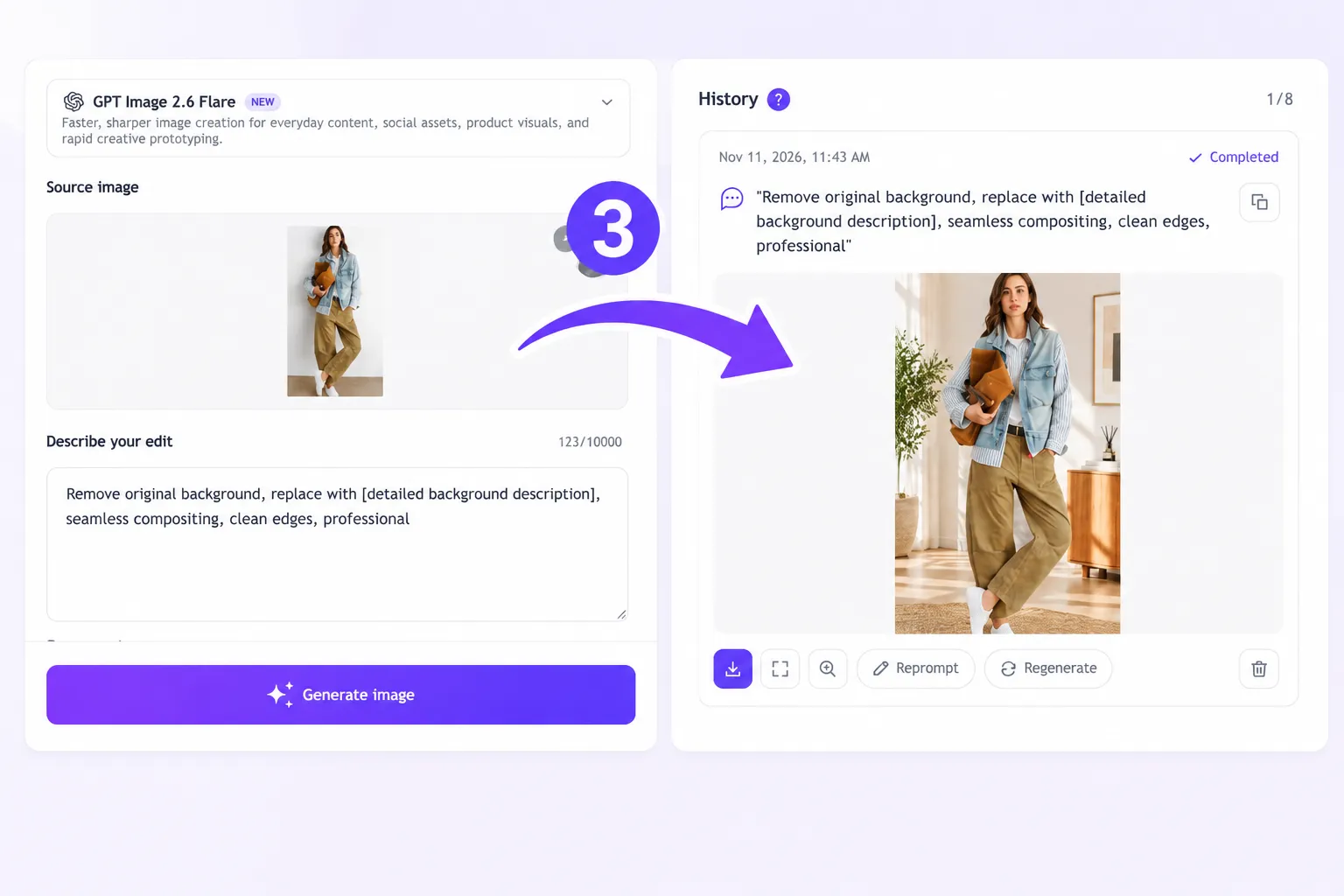
3
Review and Download
Open the result at its intended viewing size. Check labels, edges, and the details that carry the idea. Play a GIF through several repetitions or inspect an SVG in a compatible viewer. Download the file you want to take into your project.
What Users Say About GPT Image 2.6
★★★★★ Alice Morgan — Learning Designer
GPT Image 2.6 gave me a draft for a worksheet illustration I couldn't find in a stock library. I could check the arrangement against the exercise before building the page.
★★★★★ Ben Carter — Independent App Developer
A short swipe animation made the onboarding idea easier to discuss. I could put the GIF beside the screen mockup and see whether the gesture explained enough on its own.
★★★★★ Naomi Ellis — Publication Designer
I wanted one ornamental shape to work in several column widths. GPT Image 2.6 offered an SVG starting point that I could open and adjust alongside the journal's type.
★★★★★ Leo Martin — Ceramics Instructor
An unglazed piece can be hard for a beginner to imagine finished. A generated color treatment helped us talk about the intended look while keeping the test tiles on the table.
★★★★★ Clara Hughes — Museum Educator
GPT Image 2.6 helped me picture a historical workshop for a family activity. I treated it as an illustration draft and checked the tools and clothing before preparing the session.
★★★★★ Adam Price — Presentation Specialist
The useful part was describing the space the illustration had to fit. I could assess the subject placement beside our slide text instead of cropping an unrelated picture into the gap.
★★★★★ Maya Lawson — Textile Designer
I had a small fabric detail worth keeping but wanted a different surrounding composition. Providing the reference made the request more concrete, and I compared the draft with the original swatch.
★★★★★ Zoe Mitchell — Digital Illustrator
I tried Flare while deciding on the treatment and considered Sunburst once the brief had more detail. Having those distinct roles helped me decide what to ask for at each stage.
★★★★★ Isaac Turner — Interaction Designer
I used a small loading loop to discuss timing with the team. Seeing the action repeat made it easier to spot where the pause felt too long before we built the final interaction.
????
GPT Image 2.6 Questions, Answered
What can GPT Image 2.6 create?
GPT Image 2.6 is an OpenAI model family for image generation and editing. Its capabilities include still images, direct animated GIF output, and static SVG generation. The formats you can request on EzImage depend on the options enabled in the tool.
Which should I choose: Flare or Sunburst?
Choose GPT Image 2.6 Flare for fast, interactive exploration and edits. Sunburst is aimed at detailed compositions and image editing. Use the stage of your assignment to guide the choice, then judge the result against the same brief.
Does the six-second figure apply to every output?
No. About six seconds refers to Flare generating an image at low quality. It is not a completion guarantee for every request, higher quality setting, or animated GIF. The task, settings, and service conditions affect waiting time.
Can I make an animated GIF without uploading a video?
Yes. GPT Image 2.6 can generate a GIF from a written prompt or still image references. Describe the subject, one clear movement, and the repeat behavior. You do not need a source video for that model capability.
What does SVG output give me?
SVG output from GPT Image 2.6 provides static vector paths, shapes, and colors for graphics such as symbols and illustrations. It can be resized and edited in compatible software. The model's SVG workflow generates a new graphic; it is not an SVG photo-editing mode or an animated SVG feature.
How should I request text inside an image?
Write the exact words in quotation marks, then explain their size, position, and relationship to the illustration. Keep the amount of text appropriate to the canvas. Proofread the result, particularly small type, names, and numbers.
Can it work from a photo or sketch?
Yes. GPT Image 2.6 accepts image references for generation and editing. Explain which parts of a source provide the subject, arrangement, or visual style. Reference inputs guide the output, but do not guarantee that every detail will remain identical.
Can I indicate one area for an edit?
GPT Image 2.6 supports markup-guided editing. When the interface provides annotation inputs, use them to show the area and describe the intended change. Review the surrounding content as well, because a local instruction can still affect other details.
Is GPT Image 2.6 free on EzImage?
Yes. GPT Image 2.6 is free to use on EzImage. You can start creating images and exploring its features at no cost.
Will generated details always be accurate?
No. Review facts, lettering, anatomy, object geometry, and reference details before using a result. For a technical diagram or a representation of a real object, compare it with reliable source material; an attractive image can still contain mistakes.
What should I check before publishing a result?
Check the current usage terms and your rights to any uploaded materials. Inspect the final file at its destination size, and test animation playback where relevant.
 EzImage